


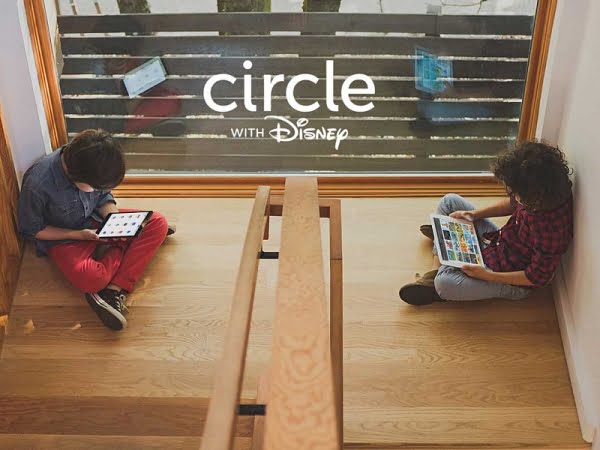
Parents want to keep kids safe online. Many devices say they have parental controls, but they are often hard to use. Disney has teamed up with a startup to make a new device called Circle With Disney. It costs about $100 and promises simple, strong control over a child’s internet use.
What Is Circle With Disney?
Circle With Disney is a small white box that plugs into your home router. It works with iOS devices (iPhone or iPad) through a free app you can download from the App Store. The box was created by three founders: Jelani Memory, Lance Charlish, and Tiebing Zhang. Disney saw the idea and quickly formed a partnership, adding its brand and characters to make the product more kid‑friendly.
How Does It Work?
When you plug the Circle box into your router, it becomes the gatekeeper for all internet traffic in your house. You then open the Circle app on your phone and set up rules. The rules can do many things:
- Set time limits – Decide how many minutes or hours a child can be online each day.
- Block specific sites or apps – Keep kids away from games, social media, or adult content.
- Pause the internet – Turn Wi‑Fi off for a whole house or just one device with one tap.
- Filter ads – Reduce the number of ads that appear while browsing.
- View usage history – See which apps were used and for how long.
- Allow or block devices – Choose which phones, tablets, or computers can connect to the internet.
All of these settings are saved in the app, so you can change them at any time. The pause feature is not a simple on/off switch that a child can easily bypass. It requires a password, making it harder for tech‑savvy kids to cheat.
Why Is It Different From Other Parental Controls?
Many parental‑control tools exist, but they often need a lot of technical knowledge. Some require you to log into a router’s admin page, change DNS settings, or write complex rules. Circle With Disney aims to be simple:
- Easy setup – Plug the box in, download the app, and follow a short guide.
- Disney branding – The app shows familiar Disney characters, making it fun for kids to see.
- All‑in‑one control – You do not need separate apps for each device; one box handles everything.
Because the device is designed for non‑technical parents, it may become a top choice among the best parental‑control gadgets.
Step‑By‑Step Setup Guide
Here is a simple way to get Circle With Disney working in your home:
- Unbox the device. You will see the white box, a power cable, and an Ethernet cable.
- Connect to the router. Plug the Ethernet cable into an open port on your router, then plug the other end into the Circle box.
- Power on. Plug the power cable into an outlet. The box will blink while it starts.
- Download the app. Open the App Store, search for “Circle With Disney,” and install the free app.
- Create an account. Use your email and a strong password. You may be asked to verify your email.
- Add devices. The app will scan for phones, tablets, and computers on your network. Tap each device you want to manage.
- Set rules. Choose daily time limits, block lists, and pause schedules. You can also set “bedtime” rules that automatically turn off Wi‑Fi at a set hour.
- Save and test. Turn off the internet for a device to make sure the pause works. Then let your child use a device within the allowed time to confirm everything is set correctly.
If you ever need help, the app includes a help center with short videos and FAQs.
Tips for Parents Using Circle With Disney
Even with a simple tool, good habits make the system work better. Here are some easy tips:
- Talk first – Explain to your child why you are setting limits. When kids understand the reason, they are more likely to follow rules.
- Start small – Begin with short daily limits and increase as needed. This helps children adjust without feeling punished.
- Use the pause wisely – Use the pause feature for meals, homework time, or family activities. It reinforces the idea of balanced screen time.
- Review weekly – Check the usage history each week. If a child is spending too much time on a game, adjust the limits.
- Combine with offline fun – Encourage reading, sports, or board games to fill the time that is not spent online.
Frequently Asked Questions
Does Circle With Disney work with Android phones?
Yes. While the app is only on iOS, the box controls any device that connects to your Wi‑Fi, including Android phones, tablets, laptops, and gaming consoles.
Can I block specific apps like YouTube or TikTok?
Yes. In the app you can add app names to a block list. The box will stop those apps from reaching the internet, even if the device is still online for other uses.
What happens if the internet is down?
The Circle box needs an active internet connection to sync new rules. However, it still works as a local filter, so existing rules stay in effect even if the ISP is down.
Is the $100 price a one‑time cost?
Yes. The $100 covers the hardware and the free app. There are no mandatory subscription fees, though optional premium features may be offered later.
Conclusion
Circle With Disney gives parents a clear, easy way to manage kids’ online time. It combines a simple plug‑in box, a free iOS app, and Disney’s friendly branding. At $100, it is affordable compared with many complex router‑level solutions. Parents who want to set timers, block content, and pause Wi‑Fi without learning technical jargon will find this device helpful. By following the quick setup steps and using the tips above, families can create a safer, more balanced digital environment.